

 SCI Artisan Official
Official templates provide an editable starting point. Replace their content, then check the layout and exported result.
Find a template
Open Official templates from the left navigation. Use the categories, search, and sorting available on the page. Covers are previews; access depends on the permissions shown. If there are no matching templates, try another category or filter. You can also start with a blank canvas.
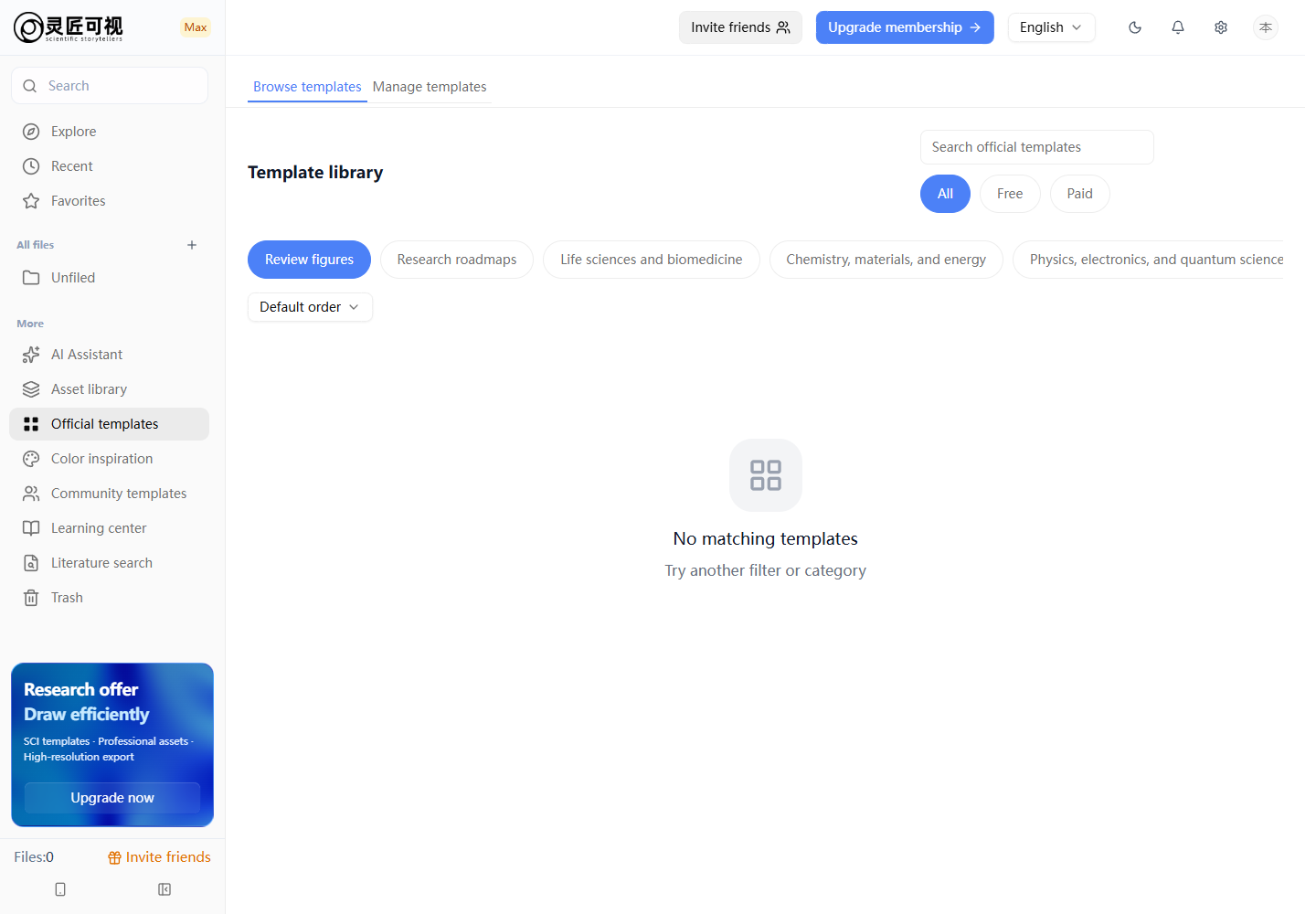 Find a template in the official library
Preview and use
- Select a template card to see its preview and available actions.
- Choose to use the template. Sign in if prompted, then continue.
- If a membership tier is required, review the current benefits or choose another available template.
Using a template creates your own editable project. It does not change the official template. Name your project before editing so it is easy to find later.
Customize the content
Replace text and colors
Double-click text to edit it. Select a shape and adjust its fill and stroke in the floating toolbar or properties panel. After each change, check that nearby shapes remain clear.
Adjust structure and layers
Watch alignment as you move elements. Select multiple elements or group them to move them together. If an element cannot be selected or is hidden, check its visibility, lock, and stacking order in Layers.
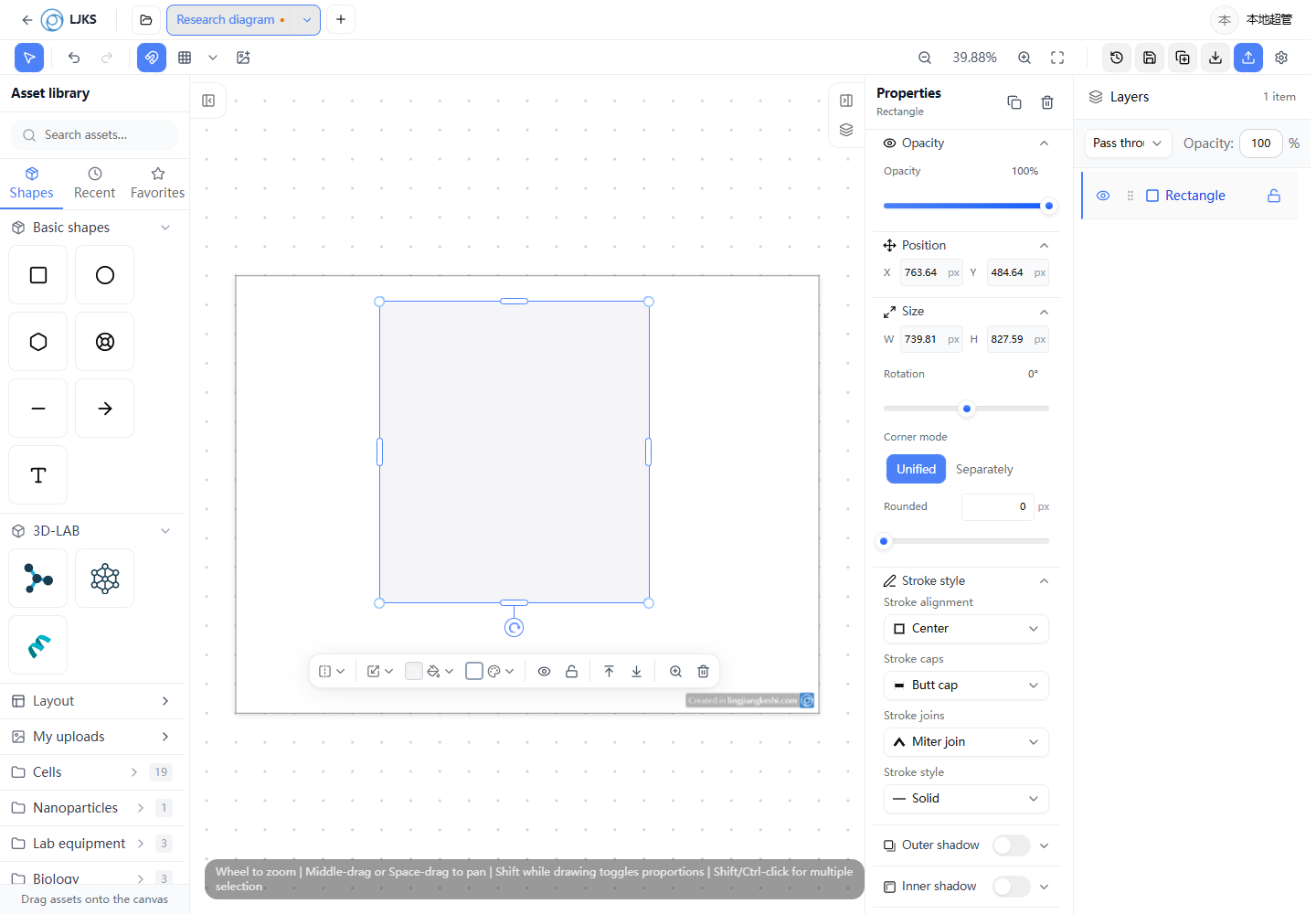 Adjust template elements in the properties panel
Before saving and exporting
- Replace text, numbers, and terminology with your own content.
- Check that legends, arrow directions, and structural relationships agree.
- Make sure images are clear and elements are not cropped at the edges.
- Save the editable project, then export the format you need.
Continue with Shapes and layout or Saving and exporting.